
Before diving into Android exploitation, reverse engineering, or fuzzing, it’s important to understand one thing clearly:
Android is not easy to break by design.
It is built as a layered, security-first operating system where multiple mechanisms work together to isolate applications, control access, and protect the system from compromise.
In this post, we’ll walk through the core fundamentals of Android security—covering architecture, sandboxing, permissions, IPC, SELinux, and Verified Boot. These concepts form the foundation for anyone interested in Android security research or exploitation.
1. Android Architecture: The Foundation of Security
Android follows a layered architecture, where each layer depends on the one below it. This design is not just for modularity—it’s a key part of its security model.
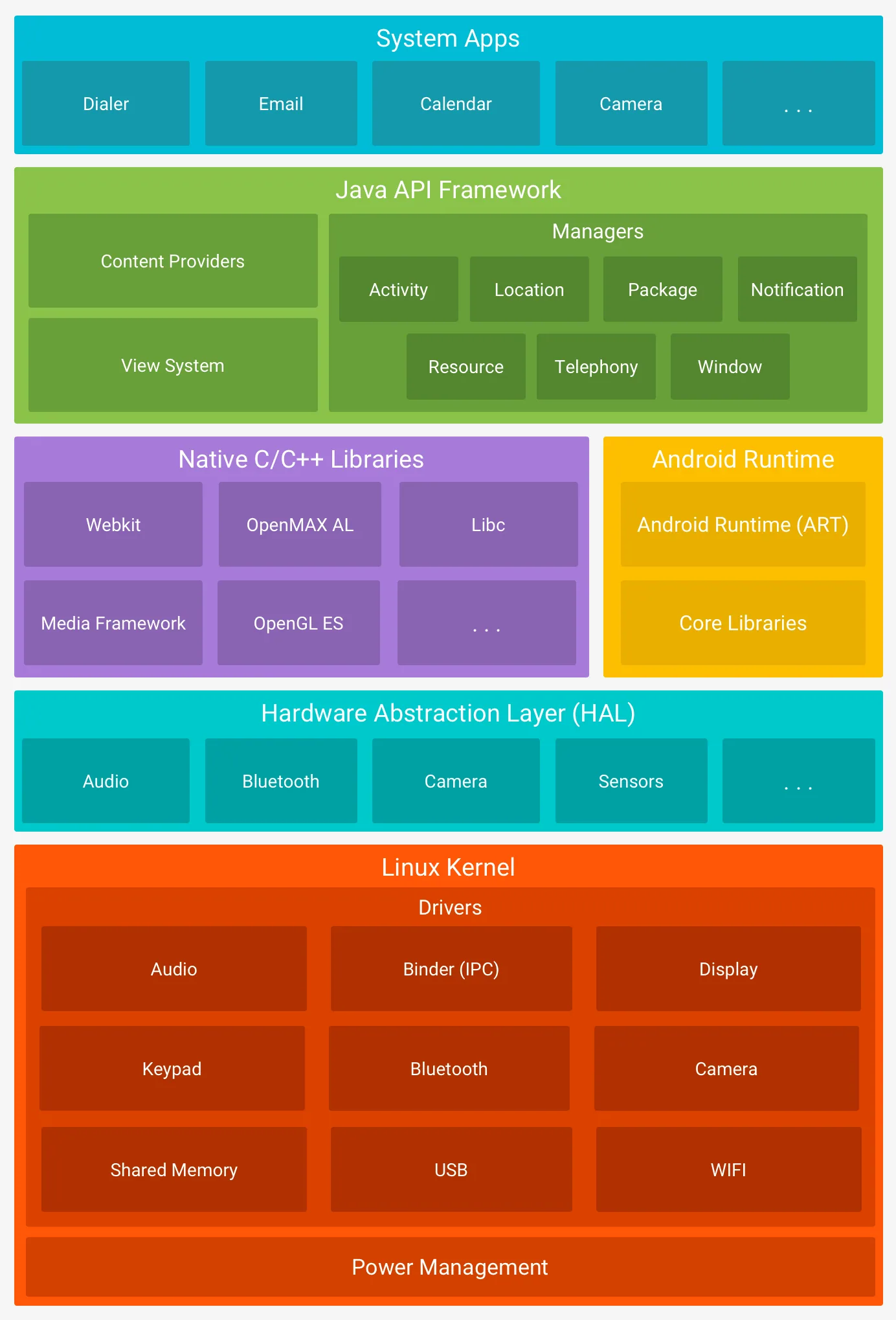
Key Layers of Android
- Linux Kernel The core of Android. Handles:
- Process management
- Memory management
- Hardware drivers
- Security enforcement
- Native Userspace Contains low-level system components and native libraries.
- Android Runtime (ART) / Dalvik VM Executes Android applications in a managed environment.
- Java Runtime Libraries Provides standard APIs for application development.
- System Services Core services like Activity Manager, Package Manager, etc.
- IPC Mechanisms Enables communication between isolated processes.
- Android Framework High-level APIs developers interact with.
- Applications Both system apps and user-installed apps.
Why This Matters
This layered structure ensures:
- Strong isolation between components
- Reduced attack surface
- Controlled access to critical resources
2. Android Security Model: Layered Defense
Android security is not based on a single feature—it’s a combination of multiple mechanisms working together.
Core Security Pillars
- Application Sandbox
- Permissions
- Inter-Process Communication (IPC)
- Code Signing
- SELinux
Among these, the Application Sandbox is the most critical.
3. Application Sandbox: The Core Isolation Mechanism
At the heart of Android security lies the Application Sandbox.
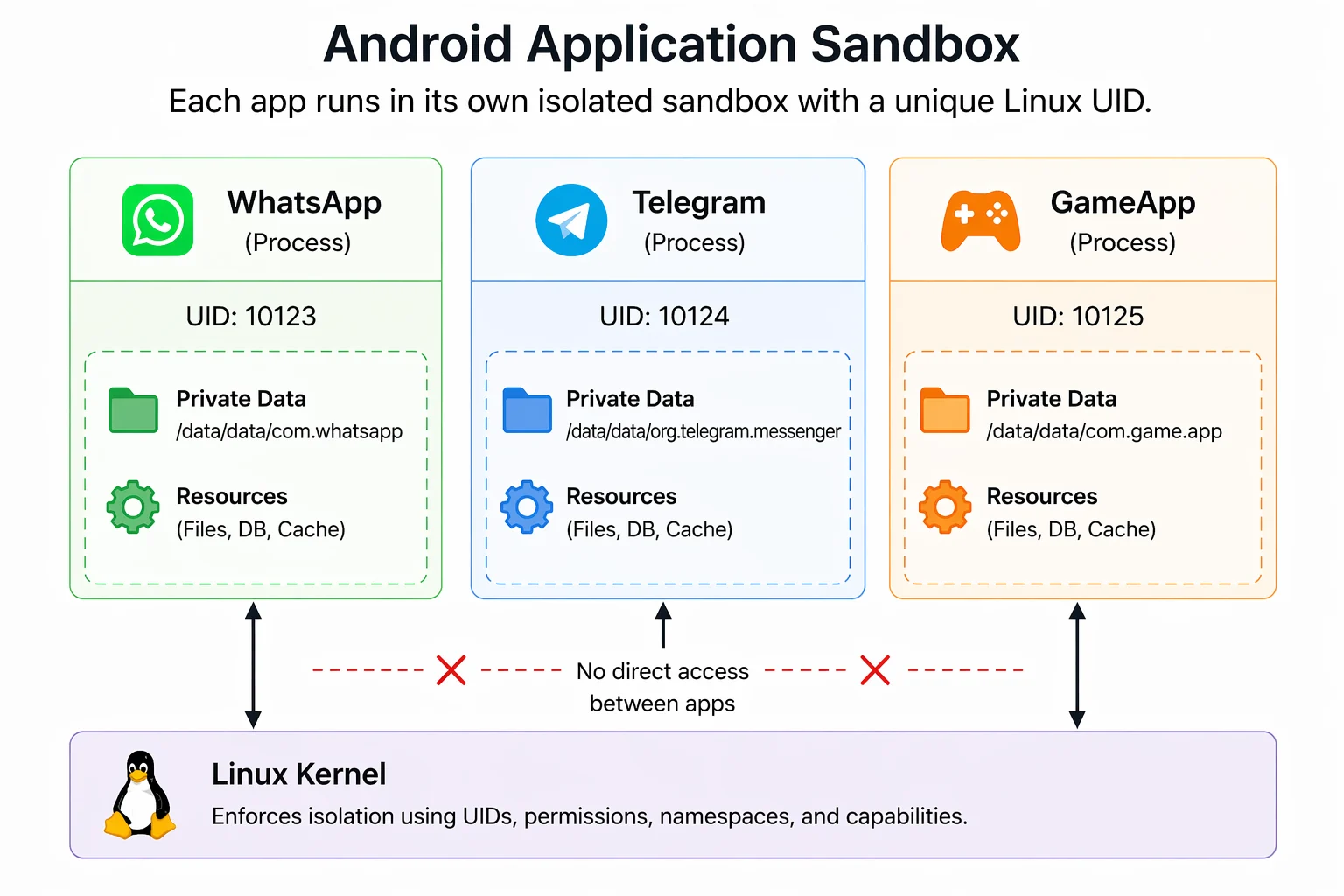
How the Sandbox Works
When an app is installed:
- It gets a unique Linux UID (User ID)
- It runs in its own separate process
- Its data is stored in:
/data/data/<package-name>This means:
- Apps cannot access each other’s files
- Apps cannot interfere with each other directly
Security Protections Inside the Sandbox
The UID-based isolation is the foundation, and Android adds more controls on top of it:
- File Isolation Each app’s private storage is owned by that app’s UID, so ordinary Linux file permissions stop other apps from reading it.
- SELinux Policies Mandatory access control adds a second check on top of UID permissions. An access has to be allowed by both the normal Linux permissions and the SELinux policy.
Related, but separate layers: Android also restricts the system calls an app can make (seccomp-BPF) and marks memory as either writable or executable, never both (W^X / DEP). These are anti-exploitation defenses that make memory-corruption bugs harder to abuse. They harden app processes, but they are not part of the sandbox itself. I’ll cover them in a later part.
4. Sandbox Escape: Where Attacks Actually Happen
The sandbox itself is strong. Attackers don’t break it directly—they bypass it by targeting lower layers.
Common Escape Paths
- Kernel vulnerabilities
- System services
- Binder IPC flaws
- Hardware drivers (GPU, Wi-Fi, etc.)
These are the real targets in advanced Android exploitation.
5. Android Permissions: Controlled Access
Even though Android apps are isolated using sandboxing, they still need access to certain system features like the camera, storage, or network. This is handled through the Android permission system.
Permissions help protect:
- User data (contacts, location, files)
- Sensitive actions (camera, microphone, Bluetooth)
How Permissions Work
- Apps declare required permissions in the AndroidManifest.xml
- Depending on the type, permissions are either:
- Granted automatically (install-time)
- Requested from the user at runtime (dangerous permissions)
For example, accessing the camera requires user approval while the app is running.

Behind the Scenes
Android enforces permissions in two different places.
1. By system services (most permissions) When an app calls a protected API such as the camera or location, the call goes through Binder to a system service. The service gets the caller’s UID from Binder and checks whether that app has been granted the permission. If not, the call fails with a SecurityException. The kernel is not involved in this check.
2. By the Linux kernel (a small subset) A few permissions guard low-level resources, such as network sockets or Bluetooth. For these, Android maps the permission to a Linux group ID in:
/system/etc/permissions/platform.xmlExample
<permission name="android.permission.INTERNET">
    <group gid="inet" />
</permission>
<permission name="android.permission.BLUETOOTH_ADMIN">
    <group gid="net_bt_admin" />
</permission>
What Happens Internally
- When an app is granted
android.permission.INTERNET, its process is started with theinetLinux group - The system uses that group to decide whether the process may open network sockets
- You can check this on a debuggable app:
adb shell run-as <package-name> idshould listinetamong the groups
So most permissions are enforced by checks inside system services, and only some low-level ones are enforced through kernel groups.
Workflow for using permissions
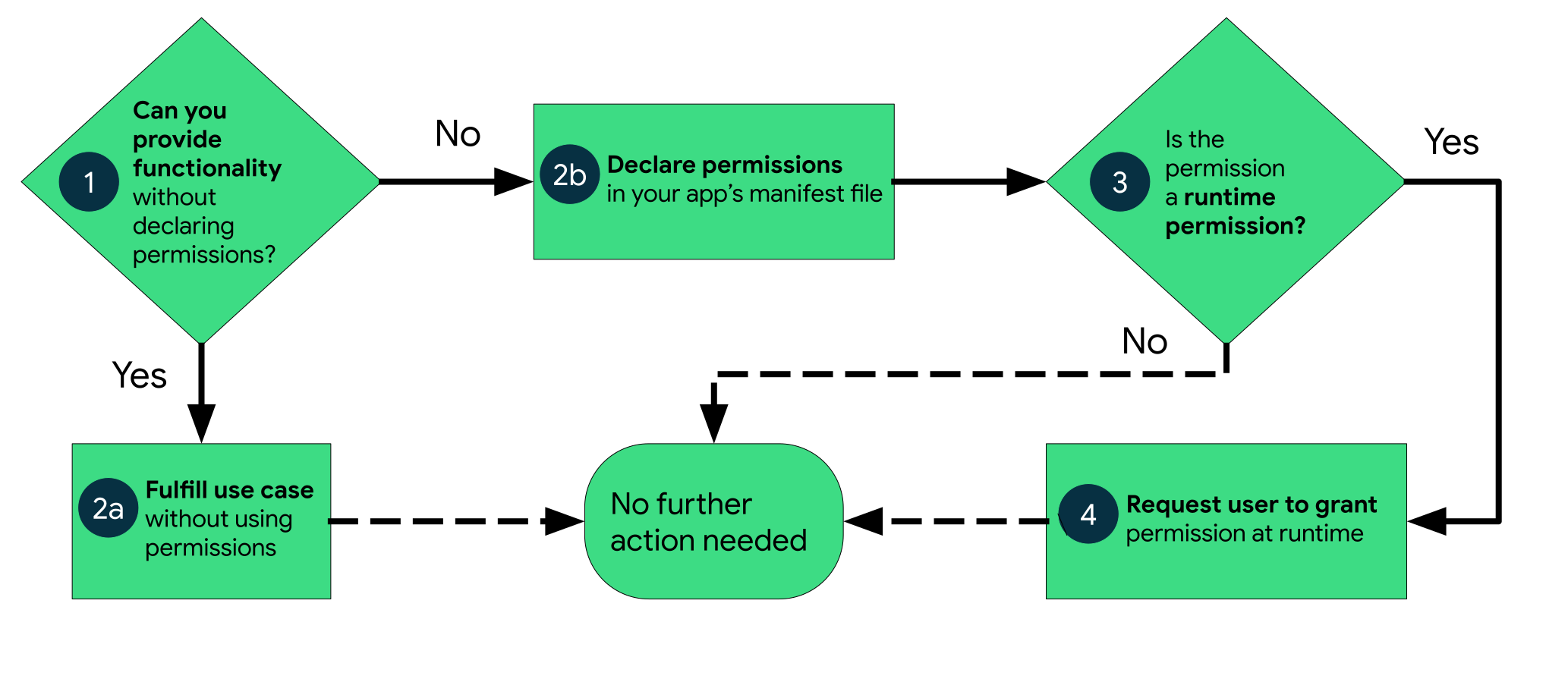
The permission workflow in Android is straightforward: an app first checks if it needs access, declares the required permission, and if it involves sensitive data, the system prompts the user at runtime. The user can then allow or deny the request, and based on this decision, the app either gains access or is restricted. This ensures users stay in control of their data while the system enforces security in the background.
6. Binder IPC: Communication Between Apps
Android applications run in isolated sandboxes, which means they cannot directly communicate with each other. To enable secure communication between apps and system services, Android uses Binder IPC (Inter-Process Communication).
How Binder IPC Works
When an app wants to interact with another app or a system service, it never calls it directly. Instead:
- The app packs the request into a Parcel (the method to call plus its arguments) and sends it as a transaction
- The transaction passes through the Binder driver in the kernel (
/dev/binder) - The driver delivers it to a thread in the target process and attaches the sender’s UID (and, for synchronous calls, its PID). The sender cannot forge these values
- The receiving service reads the caller’s identity (for example with
Binder.getCallingUid()) and decides for itself whether to allow the call, usually by checking a permission
Key Components
- Binder Driver – Kernel-level component handling communication
- Binder Client – The app making the request
- Binder Service – The app/service receiving the request
- Transactions – Structured messages exchanged between processes
Why Binder is Important
- Gives the receiver a trustworthy caller identity, supplied by the kernel and not by the caller
- Lets Android build permission checks on top of that identity
- Works with SELinux, which separately controls which processes may use Binder to talk to which services
- Parcels can carry file descriptors and object references, which is how apps and services legitimately share files and memory
Security Perspective
Binder tells the service who is calling, but the kernel does not decide whether the call is allowed. The service does. That makes each service’s own checks the real security boundary:
- A service that forgets to check, or checks the wrong identity, can be tricked into doing privileged work for an app that has no permission. This is a confused deputy problem
getCallingUid()returns the caller’s UID only while the service is handling an incoming transaction. Reading it from another thread or after the call can return the service’s own UID, which is a classic source of bugs- Because almost every interaction with system services goes through Binder, it is also a major attack surface
7. SELinux: Mandatory Access Control
Android strengthens its security model using SELinux (Security-Enhanced Linux), a powerful mechanism that enforces strict access control policies at the kernel level.
What is SELinux?
SELinux (Security-Enhanced Linux) is a Mandatory Access Control (MAC) system originally developed by the NSA. Normal Linux permissions are discretionary: they depend on who owns a file and what the owner allows. With SELinux, a central policy decides what every process may touch, and even root cannot override it.
The policy is default deny: if no rule allows an action, it is blocked.
On Android, SELinux sits on top of the UID sandbox, so an access must be allowed by both layers.
Modes
SELinux runs in one of two modes:
- Permissive – violations are only logged
- Enforcing – violations are logged and blocked. This is the mode on production Android devices.
Denials appear in logcat and dmesg as avc: denied messages. You can check the current mode with adb shell getenforce.
App Domains
Each app runs in a restricted domain such as:
untrusted_appsystem_apppriv_appisolated_appand more...
See them yourself with adb shell ps -AZ
Why It Matters
Even if an attacker gains code execution:
- SELinux limits what that code can do
8. Verified Boot: Trust Starts at Startup
Verified Boot makes sure the software a phone boots is the software its manufacturer signed, and not something an attacker or a disk error has changed. It uses a chain of trust: a hardware-protected root of trust verifies the bootloader, the bootloader verifies the boot partition, and so on through the system, vendor and any optional partitions. Each stage checks the integrity and signature of the next one before handing over control.
It also provides rollback protection, so an old, vulnerable version can’t be reinstalled, and it lets the device report its integrity state to the user.
How It Works
- At startup, the bootloader verifies the boot image, and each later stage verifies the one after it
- dm-verity protects the large read-only partitions such as system. It checks each block against a cryptographic hash tree as it is read, so tampering is detected at runtime
- Android 8.0 and higher includes Android Verified Boot (AVB), the reference implementation
Source: Android Verified Boot documentation
9. Code Signing: Who Built This App?
Android won’t install an APK unless it is digitally signed. The signing certificate acts as the app’s author identity:
- Updates must match. Android accepts an update only if it is signed with the same certificate (or one linked through a key-rotation lineage) as the installed version, so nobody else can push an update to your app
- Signature permissions. Some permissions are granted only to apps signed with the same key as the app, or the platform, that defined them
- Integrity. If the APK is changed after signing, the signature check fails at install time
Signing tells you who built an app, not whether it is safe. A malicious app can be perfectly signed. A later part covers the signing schemes (v1–v4).
Final Thoughts
- Kernel-level isolation (UID-based sandbox)
- Permission enforcement by system services, plus kernel groups for a few low-level resources
- Binder-controlled communication, with caller identity supplied by the kernel and access decisions made by services
- SELinux mandatory policies
- Code signing for app identity
- Verified Boot integrity checks
To compromise an Android device, an attacker must bypass multiple independent layers, not just one.